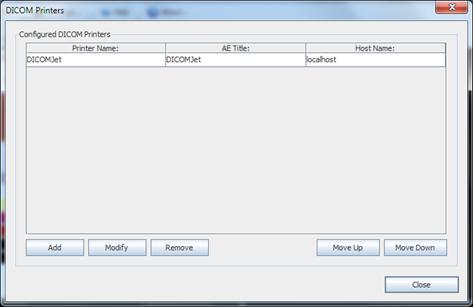
In order to be able to send DICOM print commands to one of more DICOM printers, these DICOM printers must be previously configured on each RemotEye client. This can be done by selecting the Configure DICOM printer… menu item in the Settings… drop-down menu. The DICOM Printers dialog box will appear, as shown in the following picture:
This dialog box shows the list of available DICOM Printers. A new DICOM printer may be configured by pressing the Add button. The DICOM Printer Settings dialog box will appear, as shown in the following picture:
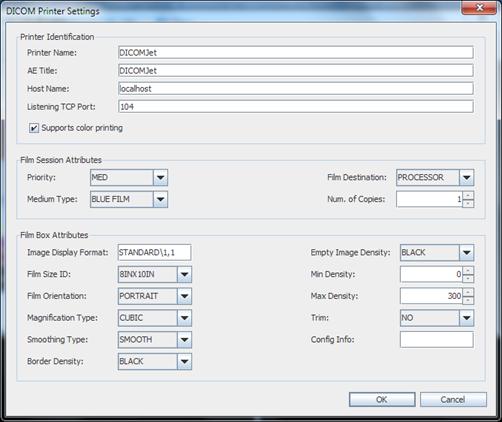
A DICOM printer is identified by the following main parameters:
•Printer Name: a textual user-friendly name which will be used by RemotEye to identify each single DICOM printer. This must be a unique name for each DICOM printer.
•AE Title: the Application Entity Title of the DICOM Printer, as required by the DICOM protocol.
•Host Name: the host name or IP address of the DICOM Printer network node.
•Listening TCP Port: the TCP port used by the DICOM Printer to listen to incoming connections for DICOM associations.
•Supports color printing: a flag indicating whether the DICOM Printer being configured supports color printing or not.
The rest of the DICOM Printer Settings dialog allows configuring Film Session Attributes and Film Box Attributes: these are the attributes which will be selected by default when performing a DICOM Print operation to this DICOM Printer. It will always be possible to change these default settings upon the actual DICOM Print operation. Please refer to the DICOM Standard for a detailed explanation about each single attribute related to the DICOM Print operation.